Showing posts with label Search. Show all posts

Thursday, June 12, 2025

Solr query with n-gram

A Search story with Solr N-Gram part 2


Querying our index

In part 1 of this search story I described the setup we did to create a custom Solr index in Sitecore that had a few fields with the n-gram tokenizer. 

A small recap: we are trying to create a search on a bunch of similar Sitecore items that uses tagging but also free text search in the title and description. We want to make sure the users always get results if possible with the most relevant on top.

In this second part I will describe how we queried that index to get what we need. We are trying to use only solr - not retrieving any data from Sitecore - as we want to be ready to move this solution out of the Sitecore environment some day. This is the reason we are not using the Sitecore search layer, but instead the SolrNet library.


Query options and basics

Let's start easy with setting some query options.
var options = new QueryOptions
{
  Rows = parameters.Rows,
  StartOrCursor = new StartOrCursor.Start(parameters.Start)
};
We are just setting the parameters for paging here - number of rows and the start row.
var query = new List<ISolrQuery>()
  {
    new SolrQueryByField("_template", "bdd6ede443e889619bc01314c027b3da"),
    new SolrQueryByField("_language", language),
    new SolrQueryByField("_path", "5bbbd9fa6d764b01813f0cafd6f5de31")
  };
We start the query by setting the desired template, language and path.
We use SolrQueryInList with an IEnumerable to add the tagging parts to the query but as that is not the most relevant part here I will not go into more details. You can find all the information on querying with SolrNet in their docs on Github.


Search query

The next step and most interesting one is adding the search part to the query.
if (!string.IsNullOrEmpty(parameters.SearchTerm))
{
  var searchQuery = new List<ISolrQuery>()
  {
    new SolrQueryByField("titlestring_s", parameters.SearchTerm),
    new SolrQueryByField("descriptionstring_s", parameters.SearchTerm),
    new SolrQueryByField("titlesearch_txts", parameters.SearchTerm),
    new SolrQueryByField("descriptionsearch_txts", parameters.SearchTerm)
  };
  var search = new SolrMultipleCriteriaQuery(searchQuery, SolrMultipleCriteriaQuery.Operator.OR);
  query.Add(search);
  options.AddOrder(new SortOrder("score", Order.DESC));
  options.ExtraParams = new Dictionary<string, string>
  {
      { "defType", "edismax" },
      { "qf", "titlestring_s^9 descriptionstring_s^5 titlesearch_txts^2 descriptionsearch_txts" }
  };
}
else
{
  options.AddOrder(new SortOrder("__smallupdateddate_tdt", Order.DESC));
}

What are we doing here? First of all, we check if we actually have a search parameter. If we do not, we do not add any search query and keep the sorting as default - being the last update date in our case. 

But what if we do have a search string? We make a new solr query that combines 4 field queries. We search in the string and ngram version of the title and description. We combine the field queries with an OR operator and add the query to the global solr query. 

We then set the sorting on the score field - this is the score calculated by solr and indicating the relevancy of the result. 

Last we also add extra parameters to indicate the edismax boosting we want to use. We boost the full string matches most, and also title more than description. 

This delivers us the requirements we wanted:
  • search in title and description
  • get results as often as possible
  • show exact matches first
  • get the most relevant results on top


Wrap up

To wrap things up we combine everything and execute the query:
var q = new SolrMultipleCriteriaQuery(query, SolrMultipleCriteriaQuery.Operator.AND);
logger.LogDebug($"[Portal] Information center search: {solrQuerySerializer.Serialize(q)}");
var results = await solrDocuments.QueryAsync(q, options);
Next to gathering the results note that we can also use the provided serializer to log our queries for debugging.

As a final remark I do need to add that a search like this needs fine-tuning. That is tuning the size of the ngrams and also tuning the boost factors. Change the parameters (one at a time) and test until you get the results as you want them.

And that's it for this second and final part of this ngram search series. As mentioned in the first post, this information is not new and most of it can be found in several docs and posts but I though it would be a good idea to bring it all together. Enjoy your search ;)

Wednesday, June 4, 2025

Search with Solr n-gram in Sitecore

A Search story with Solr N-Gram 

For a customer on Sitecore XM 10.2 we have a headless site running JSS with NextJS and a very specific search request. 
One section of their content is an unstructured bunch of help related articles - like a frequently asked questions section. This content is heavily tagged and contains quite a bit of items (in a bucket). We already had an application showing this data with the option to use the tags to filter and get to the required content. But now we also had to add free text search. 

There is nothing more frustrating than finding no results, especially when looking for help - so we want to give as much relevant results as possible but of course the most relevant on top. 

Also note that we do not have a solution like Sitecore Search or Algolia at our disposal here. So we need to create something with basic Solr. 

As I gathered information from several resources and also found quite a bit of outdated information this post seemed like a good idea. I will split it in two - a first part here on how to do the solr setup and a second post on the search code itself.

Solr N-Gram

To be able to (almost) always get results, we decided to use the N-Gram tokenizer.  An n-gram tokenizer splits text into overlapping sequences of characters of a specified length. This tokenizer is useful when you want to perform partial word matching because it generates substrings (character n-grams) of the original input text.

Step 1 in the process is to create a field type in the Solr schema that will use this tokenizer. We will be using it on indexing and on querying, meaning the indexed value and the search string will be split into n-grams.

We could update the schema in Solr (manually) - but every time someone would populate the index schema our change would be gone. 

Customize index schema population 

An article on the Sitecore documentation helped us to customize the index schema population - which is exactly what we need. We took the code from https://doc.sitecore.com/xp/en/developers/latest/platform-administration-and-architecture/add-custom-fields-to-a-solr-schema.html and changed the relevant methods as such:
private IEnumerable<XElement> GetAddCustomFields()
{
  yield return CreateField("*_txts",
    "text_searchable",
    isDynamic: true,
    required: false,
    indexed: true,
    stored: true,
    multiValued: false,
    omitNorms: false,
    termOffsets: false,
    termPositions: false,
    termVectors: false);
}
So we are creating a new field "text_searchable" with an extension txts that will get indexed and stored.

private IEnumerable<XElement> GetAddCustomFieldTypes()
{
  var fieldType = CreateFieldType("text_searchable", "solr.TextField",
    new Dictionary<string, string>
    {
      { "positionIncrementGap", "100" },
      { "multiValued", "false" },
    });
  var indexAnalyzer = new XElement("indexAnalyzer");
  indexAnalyzer.Add(new XElement("tokenizer", new XElement("class", "solr.NGramTokenizerFactory"), new XElement("minGramSize", "3"), new XElement("maxGramSize", "5")));
  indexAnalyzer.Add(new XElement("filters", new XElement("class", "solr.StopFilterFactory"), new XElement("ignoreCase", "true"), new XElement("words", "stopwords.txt")));
  indexAnalyzer.Add(new XElement("filters", new XElement("class", "solr.LowerCaseFilterFactory")));
  fieldType.Add(indexAnalyzer);
  
  var queryAnalyzer = new XElement("queryAnalyzer");
  queryAnalyzer.Add(new XElement("tokenizer", new XElement("class", "solr.NGramTokenizerFactory"), new XElement("minGramSize", "3"), new XElement("maxGramSize", "5")));
  queryAnalyzer.Add(new XElement("filters", new XElement("class", "solr.StopFilterFactory"), new XElement("ignoreCase", "true"), new XElement("words", "stopwords.txt")));
  queryAnalyzer.Add(new XElement("filters", new XElement("class", "solr.SynonymFilterFactory"), new XElement("synonyms", "synonyms.txt"), new XElement("ignoreCase", "true"), new XElement("expand", "true")));
  queryAnalyzer.Add(new XElement("filters", new XElement("class", "solr.LowerCaseFilterFactory")));
  fieldType.Add(queryAnalyzer);
  yield return fieldType;
}
Here we are adding the type for text_searchable as a text field that uses the NGramTokenizerFactory. We are also setting the min and max gram size. This will determine the minimum and maximum number of characters that are used to create the fractions of your text (check the solr docs for more details). 

Don't forget to also add the factory class and the configuration patch and that's it. 

We created a custom index for this purpose in order to be able to have a custom configuration with computed fields and such specific on this index - with a limited number of items. If we now populate the schema for that index, our n-gram field type is added.

Sitecore index configuration

As mentioned earlier we have a custom index configured.  This was done for 2 reasons:
  • settings the crawlers: plural as we have two for both locations where we have items that should be included in the application
  • custom index configuration: we wanted our own index configuration to be completely free in customizing it just for this index without consequences in all the others. The default solr configuration is referenced so we don't need to copy all the basics though
    <ourcustomSolrIndexConfiguration ref="contentSearch/indexConfigurations/defaultSolrIndexConfiguration">
In order to get what we need in the index, we configure:
  • AddIncludedTemplate: list the templates to be added in the index
  • AddComputedIndexField: all computed fields to be added in the index

Computed Fields

Next to a number of computed fields for the extra tagging and such, we also used computed fields to add the title and the description field two more times in the index. Why? Well, it's an easy to way to copy a field (and apply some extra logic if needed). And we do need a copy. Well, copies actually. 

The first copy will be set as a text_searchable field as we just created, the second copy will be a string field. Again, why?

As you will see in the next part of this blog where we talk about querying the data, we will use all data from the index and not go to Sitecore to fetch anything. This means we need everything we want to return in the index and that is why we are creating a string field copy of our text fields. It's all about tokenizers☺.  The text_searchable copy is to have a n-gram version as well.   

I am not going to share code for a computed field here - that has been documented enough already and a simple copy of a field is really very basic. 

Configuration

I will share the configuration parts to add the computed fields.
<fields hint="raw:AddComputedIndexField">
  <field fieldName="customtagname" type="Sitecore.XA.Foundation.Search.ComputedFields.ResolvedLinks, Sitecore.XA.Foundation.Search" returnType="stringCollection" referenceField="contenttype" contentField="title"/>
 ...
  <field fieldName="titlesearch" type="X.Index.CopyField, X" returnType="string" referenceField="title" />
  <field fieldName="descriptionsearch" type="X.Index.CopyField, X" returnType="string" referenceField="description" />
  <field fieldName="titlestring" type="X.Index.CopyField, X" returnType="string" referenceField="title" />
</fields>
  <field fieldName="descriptionstring" type="X.Index.CopyField, X" returnType="string" referenceField="description" />
</fields>  
This config will create all the computed index fields. Note that we are also using the ResolvedLinks from SXA to handle reference fields.
Adding the fields with the correct type to the field map:
<fieldMap ref="contentSearch/indexConfigurations/defaultSolrIndexConfiguration/fieldMap">
  <typeMatches hint="raw:AddTypeMatch">
    <typeMatch type="System.String" typeName="text_searchable" fieldNameFormat="{0}_txts" settingType="Sitecore.ContentSearch.SolrProvider.SolrSearchFieldConfiguration, Sitecore.ContentSearch.SolrProvider" />
  </typeMatches>
  <fieldNames hint="raw:AddFieldByFieldName">
    <field fieldName="titlesearch" returnType="text_searchable"/>
    <field fieldName="descriptionsearch" returnType="text_searchable"/>
  </fieldNames>
</fieldMap>  


Our index is ready now. In part 2 we will query this index to get the required results.


Monday, October 14, 2019

Using SXA Search Scope in your custom component

Sitecore SXA Search Scope

Search scopes can be used to limit search results based on conditions. 
Search scopes are queries defined and stored in Sitecore. You can find them for each SXA site in  /sitecore/content/Tenant/Site/Settings/Scopes.

Each scope has a search query that can contain conditions. These conditions can be anything that can be used in queries, like the template or the location in the content tree. Scopes can be attached to search components and you can use them in a custom component as well. This gives you a way to configure the query that is performed by your code and/or reuse the query on several places.

Rendering parameters

The search scope for a rendering is set in its rendering parameters. To easiest way to add a scope to your custom rendering is adding the _Page Search Scope template as base to your rendering parameter template.

The rendering parameter will contain a string that has the guid of the item containing the search scope. This search scope is again a a string that should be transformed to a query.

Using Search Scope in custom code

You can call all the needed functions to do this yourself (it's not that much actually) but the best way is to use the search service from SXA - this will also make sure that things like resolving search tokens are covered.

To use the ISearchService implementation, we inject it in our constructor:
public SearchResultsRepository(Sitecore.XA.Foundation.Search.Services.ISearchService searchService)
{
    this.searchService = searchService
}

Now we build a SearchQueryModel that we can pass to the search service. Note that in older versions of SXA (like 1.7.1) the service did not use this model - the parameters had to be passed individually but the result should be the same.

We read the scope from the rendering parameters and pass it with some other context information to the GetQuery function. This will take care of everything needed to transform the scope into a query that can be used to get the results from the index.
var scope = Rendering.Parameters["Scope"];
var model = new SearchQueryModel
{
    ItemID = Sitecore.Context.Item.ID,
    Site = Sitecore.Context.Site.Name,
    Languages = new List { Sitecore.Context.Language.Name },
    ScopesIDs = new List { new ID(scope) }
};

var query = searchService.GetQuery(model, out var indexName);
var results = query.GetResults();
If you still want to extend the query before fetching the results, that is also an option.

Conclusion

The scope adds a configurable part to your queries, which can make your custom component a lot more flexible towards multisite or any other condition that you can now remove from the code. It's maybe not the most know feature of SXA (although you might have used it in the out-of-the-box search components), but it can be very useful even towards custom code.

Wednesday, January 2, 2019

Extending SXA search queries with SearchQueryTokens

Tokens in Sitecore Search

SXA comes with a set of tokens that you can use in search queries to apply additional search filters.

They can be very useful when creating queries that will be used on multiple pages. In my case, I wanted to extend a search scope with some business logic based on the value of a field on the current page.

The "ItemsWithTheSameValueInField" came close to what I needed but not entirely..  but these tokens can be easily extended. Let's implement our own ResolveSearchQueryTokensProcessor!

ResolveSearchQueryTokens Processor

To start my implementation, I had a (dot)peek at the ItemsWithTheSameValueInField source code as mine would be rather similar. First thing to do is define the key for our SXA token:
[SxaTokenKey]
protected override string TokenKey => FormattableString.Invariant(FormattableStringFactory.Create("{0}|FieldName", "YourTokenName"));

Next thing is override the Process method:
public override void Process(ResolveSearchQueryTokensEventArgs args)
{
  if (args.ContextItem == null)
    return;

  for (var index = 0; index < args.Models.Count; ++index)
  {
    var model = args.Models[index];
    if (model.Type.Equals("sxa", StringComparison.OrdinalIgnoreCase) && ContainsToken(model))
    {
      var fieldName = model.Value.Replace(TokenPart, string.Empty).TrimStart('|');
      var field = args.ContextItem.Fields[fieldName];
      if (field?.Value != null)
      {
        args.Models.Insert(index, BuildModel(fieldName, field.Value));
      }

      args.Models.Remove(model);
    }
  }
}

Let's see what is happening here:

Find our SearchStringModel

The code loops over all the SearchStringModel objects in the arguments. Each SearchStringModel defines a part of the query and has a value, a type and an operation.  When looking at the search box interface like in the above image:
  • the type of the SearchStringModel is the first part (in the image above that would be "Sxa") 
  • the value of the model is the second part (e.g. "ItemsWithTheSameValueInField|FieldName")
  • the operation is "must", "should" or "not"

So we search until we find a model of type sxa. The ContainsToken function adds this check to make sure we have our the token that corresponds with our code:
protected override bool ContainsToken(SearchStringModel m)
{
  return Regex.Match(m.Value, FormattableString.Invariant(FormattableStringFactory.Create("{0}\\|[a-zA-Z ]*", "YourTokenName"))).Success;
}

If the model is found, we fetch the provided FieldName and test if the context item has a value in this field. If that is the case, we build a new SearchStringModel to be inserted in the list. The current model is removed as that has been handled.

Build a SearchStringModel

protected virtual SearchStringModel BuildModel(string fieldName, string fieldValue)
{
  var name = SomeBusinessLogicWithFieldName(fieldName);
  var value = SomeBusinessLogicWithFieldValue(fieldValue);
  return new SearchStringModel("custom", FormattableString.Invariant(FormattableStringFactory.Create("{0}|{1}", name, value)))
  {
    Operation = "must"
  };
}

I am building a SearchStringModel based on the field name and value. The model type is "custom" as we are not using predefined Sitecore fields. You can test such queries in a search box as well. If you would use them in a SXA scope, the scope string would look like "+custom:fieldName|fieldValue".


ResolveSearchQueryToken configuration

To tell Sitecore that we have our own tokens, we have to add the processor to a pipeline:
<sitecore>
  <pipelines>
    <resolveSearchQueryTokens>
   <processor type="YourNameSpace.YourType, YourAssembly" resolve="true" patch:before = "*[1]" />
    </resolveSearchQueryTokens>
  </pipelines>
</sitecore>
With this patch I am including our tokens as the first one in the list.

Once this config patch and the code is available, your Sitecore instance will detect the SxaToken and it will be available in the search list once you type "Sxa".


Conclusion / Issues

I have used this succesfully in scopes with SearchResults components to make them aware of the context item (adapting the actual query based on a field value of the current page). You can of course make the code as complex as you would like
  • pass more parameters in
  • create multiple models based on your data
  • ...

I did find one issue though: in the SearchResults component we have a ContextItem. But that is not always the case. Our code will not break (we do check for null) but the extra filtering is not happening in that case. Sxa's checklist facet component -in 1.7.1- does not send the ContextItem and it does make sense that a facet uses the same data as the corresponding results component.
I've created a Sitecore Support ticket to fix this and did get a patch (ref. 301406).

But (again) a very nice extension point for the Sitecore Experience Accelerator.

Monday, July 23, 2018

Overview pages with SXA search components

Sitecore SXA search components

Sitecore eXperience Accelerator comes with a bunch of components to create a search solution for your site. A few years ago -with SXA 1.1- I wrote a post on (some) of the search components and how to use them to create a site search. 

It wouldn't be Sitecore nor SXA when you could not tweak this a lot.. you can create specific searches, facetted results, and lots more..  Just check out the official docs.

When I found out that we can trigger the search results without user interaction I saw new possibilities.  We can create overview pages with the search components! This is no rocket science but probably worth sharing for people who are not so acquainted with SXA yet.


Create an overview page with SXA search components

Let's explain our setting: we have a number of products and want to create a page where the visitor can easily find the product (s) needs. We'll show the products and let them be filtered based on a few facets in order to get the visitor quickly to the wanted products with a link to the details.

So we have items of a template "Product" that are located in folders underneath our "product root node". 

Search scope

First thing to do is define our search scope. A search scope is used to limit the search results based on a query. Go to /Settings/Scopes in your sites folder to define a scope. In our case we created a Product Scope with a query on location (our product root node) and template (our product template). Use the "Build Query" dialog to create the query you need (the dialog performs the actual query so can preview the results). 


Search results

We can already create the search results to see if our listing is working. Select a page (or partial design) where you want the overview. Go to the experience editor and from the SXA toolbox drop the Search Results component on the page. 

The datasource of the search component is not really important here. This item contains the "Results not found" text, but we should always have results. 

What is important though are the properties of the control in the SearchCriteria section.
Make sure to:
  • select the scope (your created scope should be available here)
  • select "Automatically fire search when no criteria set" - this will make sure that your search is done automatically on the page


Variant
You'll probably want to create a variant for your search results. Create a new variant definition under /Presentation/Rendering Variants/Search Results in your site and select the variant on your search results component. In this variant you can define which fields (from the Product template) should be shown. Don't forget to set "Is Link" on at least one (the title) to have a link to the detail page.
More information on creating a variant on the official doc site.


More...
You can extend your page with more search components as needed. You'll probably want the "Page Selector" and "Page Size" components, maybe also the "Sort Results"..    More info on the available components for search can be found on the official doc site.

Facets

Next step is to add our facets to have filters on the results. Our template contains a few fields that we want to filter on. In our case those fields were of type DropList. This means that the raw value of the field is actually just a Guid. Of course, you don't want to display guids to your visitors..  so we had to add extra fields to our index to do this. 

Facet index field
It's been asked on StackExchange, but the information can be found on the official doc site. And yes, it's as simple as adding a few definitions for computed fields (not even code, as the code has been provided by SXA).

To be able to create the facet to a field that has a guid, add the following in a config patch file (check the config file for your search provider for the exact location where to patch this):
<field contentfield="title" fieldname="referenced" referencefield="link" type="Sitecore.XA.Foundation.Search.ComputedFields.ResolvedLinks, Sitecore.XA.Foundation.Search"></field>
where:
  • fieldName: defines the index field name
  • referenceField: name of the field in your template
  • contentField: name of the field to be fetched from the referenced item
Don't forget to rebuild your index after these changes...

Once we have the field in our index, we can create the facet in SXA.

SXA Facet
We will use facets to refine the search results. Facets in SXA are added to /Settings/Facets in your site. 

There are a few facet types (bool, date, integer, list ...) - we used list types in our case. It might be a bit tricky to get the "Field Name" field correctly as this has to be like in your index. Easiest way to be sure is to check your index (e.g. use the Solr admin interface) to find the exact field name in the index. In my case it was "fieldName_sm" (where fieldName is the one from our patch above). 

Adding the facets to the page
Last thing we need to do is add the facet components to our page, using the created facet settings.
Go back to the page (item) where you added the search results and open it again in the experience editor.

For each facet you have, add the Filter component you want. I used Dropdown and Checklist, but this will depend on what you actually want to filter on and how you want to present it to the visitor. 

When the component is dropped on the page, create a new datasource for it. In this datasource item, you can alter a few texts used on the component but the most important one is the Facet field. Select the appropriate facet here.

The results

When all this is done and published, you should have a nice overview page that has filters, paging, .. and everything you need to get your visitors to your detail pages. Good luck!

Extra

You will notice that filtering the results creates a new url each time. This means we could immediatly link to a filtered version of our page if we would want to...


ps: we are using SXA 1.7.1 at the time of writing

Wednesday, November 16, 2016

Sitecore Experience Accelerator: SXA and Search

First encounters with SXA: Search components

I was investigating the possibilities of SXA, the new Sitecore Experience Accelerator, 1.1. Questions were put on the Sitecore Stack Exchange site - not only by myself of course, also by many others - and that made some things clear. One of the subject I was testing was the search functionality, using the standard components and not adding any code. As it was all on a small test setup, I did not go as far as testing performance and stability, the focus was more on functionality.

But here they are - my first encounters with SXA to share.

Setup a search box and results page

First thing to do was setting up a search result page. I created a page just like any other and added the "Search Results" component from the Toolbox.

Next step was to  have a search box to feed the search page. I placed this one on a partial design to include it on all pages.  As I am still using the built-in basic theme, the search box looks like this:


The labels can be altered. The search box has some properties that can be set: first one seems quite important is the search results page. So we select the page that we created before. We also set the maximum number of predictive results shown in the dropdown. Yes, that's right - the search box has predictive results:


We save, publish it all. And there is our search! As we had some content pages, we get results from the index in our search box and we get send to the search results page as expected. The request to the search results page has the search query in the url query parameters, so analytics tools can pick it up if needed.

Some extra's

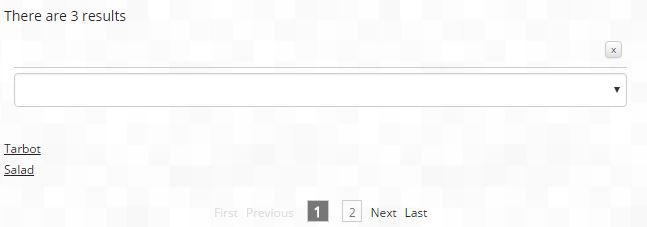
Of course, a page with just search results is not very user friendly so we add some more components. Let's add the "Results Count" on top, a dropdown "Filter" as well and the "Page Selector" at the bottom. We will go for a fixed page size, and have set it's value in the Search Results component. We now have something like this:


We have set the page size to 2, which is not realistic but managed to show the pagers working without having to add too much demo content pages.

So now we have a search box, results page with counter and paging and no letter code. 

Facets

Our filter is still empty now. The pages in SXA have tagging by default and we did tag all of them with one or more tag values. So lets try to filter on those tags!

First we create a facet "Tag".
In the facet item we set the name and display name and the field name. This is the lower case name of the field that is used in the index and that the facet is based on, in our case it's "sxatags". If you don't know the exact name of the fields you can always find this by looking at the templates used by the (SXA) items.

Once we have the facet item, we create a datasource for our Filter component and set the Facet field to the one we just created. Et voila, we publish and see:

facets with numbers in the dropdown filter box. By selecting one of them, the search results get filtered on the tag. 

Still no line of code...

And further... a Tag Cloud

We also added a Tag Cloud component - and noticed it works very well with our newly created search. 
As it is not styled, it looks like ****, but it works. I get my tags as used in the site and when I select my search results page as a parameter of the tag cloud components, clicking the tags gets me to my search results page with a search on the tag.


Customizing

You can alter the search results look by creating a rendering variant. The default will show the Title or display name of the items, but you can add fields to the default variant, or create a new one and select this custom one in your search results component. You need to create VariantField items to achieve this. 

Note that you can not alter the results look per template type (e.g. add an image to results of type 'Product') but you can add extra fields for it, and if the fields does not exist it will just be skipped.

Issues and/or questions - The conclusion

Questions will rise and problems as well. What is for me still unclear is the way the index behind the search engine works. The search uses one field, "SxaContent" - which is a computed field. But for now it's not very clear what is included in that field (next to the default title and content) and what is not - or how to get things included. 

Another mystery is the updates. As I did some research to using Lucene/Solr indexes for a full site search in the past, I am always curious to see how the updates are handled in index based search solutions. How does a "page" know that some content in a datasource is updated? 
From the tests I made, updating a shared datasource seems to work - all pages are updated. But I had some trouble when I added a new component with an existing datasource to a page - that did not get updated in the index.  That will require some more investigation.

Conclusion

The conclusion is that we have a working search without coding and in a very short time. Does it have all the features that "a customer" might want? No, maybe not. But do compared to the effort needed to put it on the site it's definitely worth considering! A promising first encounter with SXA...