Monday, October 29, 2018

Sitecore 9.1 Forms - Prefilling fields & security

Sitecore 9.1 Forms

The Forms feature has 2 major new features in version 9.1 of the Sitecore platform. You'll get conditional fields and prefilling of fields. It's about that last one I wanted to give you a little bit of advice...

Prefilling fields

Without going into too much details (Sitecore 9.1 is only released in tech preview at the time of writing - release version will be available soon) the prefilling is based on value providers - classes that will get the values based on a parameter defined with the field. 

Prefilling is a nice feature, as it makes the user experience better and the conversion rate of the forms higher - visitors are lazy ;)

But.. before you jump into prefilling everything you think you know about me, read this article: https://www.campaignion.org/blog/all-you-have-know-about-pre-filling-forms

It is a good overview of what you can an can't do when prefilling forms. And there is one option related to Sitecore that I want to address.

Prefilling xConnext data

Sitecore environments usually have (a lot of) information about their visitors in the xDB database. It is very tempting to use that data to prefill the forms. But there might be catch..  

Consider the following scenario (which is not so far fetched) on a website:
  • a form with just an e-mail address to subscribe to the newsletter
  • a contact form (with email, name, address, ...)
  • all forms will identify the contact
  • all forms use prefilling on fields where possible (all ootb xXonnect fields)

So, what is the catch? Well, if I subscribe you (yes, you.. not me) to the newsletter and the system already knows you it will attach my session to your profile. No harm done, until I visit the contact form and see all your contact data. 

How do you prevent this? You probably want to keep the contact identifcation as that gives your marketers the information they want in the xConnect reports. Adding a Captcha to your form will help a bit (and this might be a good idea for other reasons as well). But actually, the only good solution is -as described in the mentioned post above- to only prefill data from a datastore (like xDB) when your user is really identified - meaning logged in or truly identified through an identifier in the querystring. 

Conclusion

Prefilling is a nice new feature (and it looks better than the WFFM version). And I hope the community will start sharing value providers. But be aware of what you do with your visitors data.. after all, you don't want to end up in a next version of Mikkel Rømer "white hat hackers" session.

Wednesday, October 24, 2018

What's new in SXA 1.8

In the very near future, SXA 1.8 will be available for all - together with Sitecore 9.1.
I had the privilege to take an early look and it looks good.  So ..

What's new?

I'll try to go over the new stuff, based on my notes from the Symposium session by Adam, things I heard in the community and the documention - and provide screenshots were possible.

Installation

Let's start in the beginning. The installation guide mentions "Sitecore Experience Platform 9.0 update 2 or 9.1" as prerequisite. So no Sitecore 8 anymore.. 

As the need to support Sitecore 8 limited the SXA team for certain features, this is a good evolution.

For a developer

  • Bootstrap 4

    This one was announced so no big news, but front-end people will still be very happy that this made the release. Bootstrap 4 comes as an extra option for the grid system - bootstrap 3 is also still available (probably for upgrade scenarios).
  • Link field best practices

    This is a Powershell script available on templates (folders) that will verify the source fields of the templates and suggest better options regarding multisite solutions (e.g. the use of the $site token).
    I must admit that when looking for this script, I found even more interesting (already existing) scripts that come with SXA. Nice...

  • Embedded renderings in rendering variants

    Personally I think this is one of the coolest new features in this version. When this was demoed in the Symposium session, quite some people apparently had no clue what to do with this. But it gives us even more options to get the renderings just the way we want them. Yes, no we can add a breadcrumb within a hero section filled with just page content... and our logic stays were it should be (in the breadcrumb component). I'm sure I will use this one! (to be honest, I already did try this on my preview-test environment and it works like a charm.. )
  • Adding modules

    On tenants and sites, we get scripts to add (missing) modules. Running the script will list all missing modules and you can install the selected ones.
    But, we can also do this the other way: adding a (new) module to multiple sites at once. On your module in /sitecore/System/Settings/Foundation/ or /sitecore/System/Settings/Feature/ you'll find the script. 
  • Custom html (views) per site

    The SXA components have their views, located in the Views folder. That remains the default and fallback location. But you can on each site define -on the Settings item- a CustomRenderingViewPath. This path can contain custom views for the renderings in that site. They need to use the same names and folders - if they do not exist the default is used (so you don't need to copy all views if you just want to change one of them).
    Just like the previous topic a nice feature for multi-site solutions.

For an editor

  • Defining the sections of the toolbox

    Up until version 1.7.1, the toolbox sections were determined by the paths in your renderings folder in the layouts section of Sitecore. This was not very user friendly as you want to group your renderings based on their feature (Helix...). That makes sense to the developers but not to the editors. We already had the "available renderings" section for each site but that wasn't used due to .. well, they had their reason in the early versions but that was gone now. So now we have the option to define the sections in the toolbox based on the available renderings. Note that by default the necessary checkbox (on the "available renderings" item in each site) is off.  As I asked for this one, I'm very happy to see it..
  • Updated editing modes

    The wireframe mode got a revamp and is looking quite a bit better. And a new mode was added: grayscale.
  • Highlighting partial designs

    When hovering over a partial design in the Partial Designs dropdown section in the Experience Editor the current partial design is shown in green border(s) in the editor. This makes it clear for editors where the partials are located and what they contain.
  • Cross site linking

    This might seem very trivial but in a multisite SXA environment it's not always so. You now get the option to set on each site what the "linkable" sites are.
    By default it is the current site only, but you can select all linkable sites or all linkable sites from the current tenant. To define a site as "linkable", you should mark the checkbox in your site's "settings/site grouping/site".


For visitors

WCAG 2.0 compatibility


Some additions were made for the accessibility compliance of SXA. On my test environment the "tab" key seemed to work, and I added the "skip" meta component:


Conclusion

I can be very short on this: it seems like a very nice version with some exciting features. And the upgrade guide is only 9 pages... :)

Monday, October 22, 2018

Using tokens in Sitecore SXA variant data attributes

Sitecore SXA variant definitions


Variants are an important part of SXA. Although SXA is so much more, learning how to use these is rather crucial for anyone who want to create sites with SXA. If you need more information on this, a good place to start are these official docs:
You can do a lot with these variants. Especially when you discover the power of the "Reference" in a variant definition, lots of scenario's become possible...  and there are some hidden gems. 

Our case

We had to create a rendering that displayed blocks of content - so far no problem, this is just displaying fields from a list of items. But the editor had to be able to set a background on each individual block (and some other properties). Short version: we had to be able to set a css class on every block. We could have asked our editors to create a rendering for each block they needed and set parameters on that rendering, but as we had reasons not to do that.

So we started looking at the variant definitions options, tried a few things without luck and ended up asking help on Stack Exchange: https://sitecore.stackexchange.com/q/12806/237

As usual, the SXA dev team came to the rescue (- thx Dawid for this one) and showed me a little hidden gem.

Using tokens in data attributes

Apparently you can use some tokens in the data attrbutes that are available in each part of the variant definition. As shown in the answer on SSE, we can use "class" as data attribute and fill that with a value from a field on the current item by using the $(fieldName) notation.

This means we can use a Reference in our variant to loop over a set of items, and for each of those items render a section (e.g. "div") with a class on it. That'll do it..

But.. we had one small issue. The default implementation will work with text fields. But for link-type fields it will generate a link to the target item. We don't want our editors to type values for fields like this - it should be a selection. So we got a patch from Support that extended this functionality to ValueLookupFields to fetch the value.

Now we could give our editors a dropdown selection of styles and use those in our variant. That's what we needed! (as soon as the site goes live, I can add a screenshot of the result)

I had a look at what Support provided for us and although it is not designed to be expanded easily, we can do even more with this (and so we did).

public class RenderSection : Sitecore.XA.Foundation.RenderingVariants.Pipelines.RenderVariantField.RenderSection
{
 protected override string GetAttributeTokenValue(string fieldName, Item item)
 {
   Field field = item.Fields[fieldName];
   if (field == null)
  return string.Empty;
   ....
   return base.GetAttributeTokenValue(fieldName, item);
 }
}
<sitecore>
    <pipelines>
      <renderVariantField>
        <processor patch:instead="*[@type='Sitecore.XA.Foundation.RenderingVariants.Pipelines.RenderVariantField.RenderSection, Sitecore.XA.Foundation.RenderingVariants']" type="Sitecore.Support.XA.Foundation.RenderingVariants.Pipelines.RenderVariantField.RenderSection, Sitecore.Support.00000" resolve="true" />
      </renderVariantField>
    </pipelines>
</sitecore>

We noticed they had overwritten the function that handles the tokens in case of a variant section (if you want this to work on other variant options like text or field, you need to overwrite those too). Where Sitecore/SXA is designed to be extended, they usually make it easier for us :)

So as mentioned, it is not (yet) designed to be expanded but it can. You could write any logic you want in the above funtion based on the "fieldName" (which propable doesn't even need to be an existing field name).

This opens a new set of possibilities to render everything we need with SXA variants!

Just one little request for a future version:  make this easier to extend.. ;)

Wednesday, August 8, 2018

Sitecore SXA, rules engine & containers in partial designs

SXA and partial designs

While working on a Sitecore site with SXA I created several partial designs (as you should when working with SXA). What a partial design is, and how it is used to create page designs that define the layout of your pages in SXA can be read in the official docs.

What you should know about partial designs is that you edit them on the partial design item itself, not on the pages where they are used. On the final page in the experience editor, you can edit the content shown by the partial design but you cannot change the design itself (add, remove or change components or their properties). Still, partial designs are very useful and help you keep the number of components on a page reasonable. On many occasions though, you will want the editors to be able to add components to the page that are not preset in the partial design. This can be done by adding a "container" component in the partial design (note: this is one way - not necessarily the way) on the spot where you want to give the editors a new placeholder (a placeholder is a spot where new components can be added). And so we did...

And then came the designers... and they gave our pages a very nice design. But they had a problem: empty containers!

The containers that were added to the partial design might remain empty. And with our design, this made it hard for the designers to get the required result. So: lets remove those empty containers.

SXA & the Container component

As mentioned, the container component was just added to have a placeholder available. It's a typical "structure" component that adds a wrapper for other renderings.

In the experience editor we want the placeholder to be always available (to be able to add components) but in normal or preview mode we want it gone when no renderings were added. 

The container component generates a placeholder named "container-x" where x is a dynamic placeholder id. 
Hint: when using the container, you should also set the placeholder restrictions for the generated placeholders - as you should do always probably ;)  More info on how to do this with SXA can be found on the official docs.
 To remove the components, I used the Sitecore rules engine. 

Using the rules engine

We want to use conditional rendering to hide the component when the related placeholder is empty. The action to hide a rendering is out-of-the-box available, so we only need the "condition". 

In this condition, we first check the PageMode to make sure we are in normal or preview mode.

We could ask the administrator adding the rule and using our condition to pass the related placeholder as a parameter (the easy way) but we can actually retrieve it.  The rendering (container) has a parameter called DynamicPlaceholderID that contains the generated dynamic placeholder id. In our case we hard-coded the prefix "container-" but you might do something pretty with that as well.

Last thing to do is find out if there is a rendering on the page in that placeholder..  which can be done with a query on the renderings list. 

Let's wrap this up and show the code:
public class WhenPlaceholderIsEmpty<T> : WhenCondition<T> where T : RuleContext
{
    protected override bool Execute(T ruleContext)
    {
        Assert.ArgumentNotNull(ruleContext, "ruleContext");
        if (!Sitecore.Context.PageMode.IsNormal && !Sitecore.Context.PageMode.IsPreview)
        {
            return false;
        }

 var conditionalRenderingsRuleContext = ruleContext as ConditionalRenderingsRuleContext;
        if (conditionalRenderingsRuleContext == null)
        {
            return false;
        }
  
        var dynamicPlaceholderId = HttpUtility.ParseQueryString(conditionalRenderingsRuleContext.Reference.Settings.Parameters).Get("DynamicPlaceholderID");
        if (dynamicPlaceholderId == null)
 {
            return false;
        }

        if (conditionalRenderingsRuleContext.Item.Visualization.GetRenderings(Sitecore.Context.Device, false)
            .ToList().Any(r => r.Placeholder.EndsWith("container-" + dynamicPlaceholderId, StringComparison.OrdinalIgnoreCase)))
        {
            return false;
        }

        return true;
    }
}

To quickly add this to condition to Sitecore, go to /sitecore/system/Settings/Rules/Definitions/Elements and create a new Element Folder.  In the created folder find tags/default and select Conditional Renderings as tag. In the root of the created element folder, add a new Condition. Fill in the Text like "when the placeholder in the container is empty" and add the Type (referal to the class above). Don't forget to publish the created items ;)

Personalization

Go to a partial design that contains a Container rendering. Open the presentation details (in content editor - you might also use the experience editor) and edit the controls. Use the personalization feature on the Container rendering and add a personalization rule using the newly created condition and the standard available "hide" action.  Save & publish.


Conclusion

Partial designs are a great way to organize your pages in SXA. And yes, they do put have some limitations. But it wouldn't be Sitecore if there was no way to do something about that and the rules engine is a rather powerful tool to help you achieve what is needed.

Monday, July 23, 2018

Overview pages with SXA search components

Sitecore SXA search components

Sitecore eXperience Accelerator comes with a bunch of components to create a search solution for your site. A few years ago -with SXA 1.1- I wrote a post on (some) of the search components and how to use them to create a site search. 

It wouldn't be Sitecore nor SXA when you could not tweak this a lot.. you can create specific searches, facetted results, and lots more..  Just check out the official docs.

When I found out that we can trigger the search results without user interaction I saw new possibilities.  We can create overview pages with the search components! This is no rocket science but probably worth sharing for people who are not so acquainted with SXA yet.


Create an overview page with SXA search components

Let's explain our setting: we have a number of products and want to create a page where the visitor can easily find the product (s) needs. We'll show the products and let them be filtered based on a few facets in order to get the visitor quickly to the wanted products with a link to the details.

So we have items of a template "Product" that are located in folders underneath our "product root node". 

Search scope

First thing to do is define our search scope. A search scope is used to limit the search results based on a query. Go to /Settings/Scopes in your sites folder to define a scope. In our case we created a Product Scope with a query on location (our product root node) and template (our product template). Use the "Build Query" dialog to create the query you need (the dialog performs the actual query so can preview the results). 


Search results

We can already create the search results to see if our listing is working. Select a page (or partial design) where you want the overview. Go to the experience editor and from the SXA toolbox drop the Search Results component on the page. 

The datasource of the search component is not really important here. This item contains the "Results not found" text, but we should always have results. 

What is important though are the properties of the control in the SearchCriteria section.
Make sure to:
  • select the scope (your created scope should be available here)
  • select "Automatically fire search when no criteria set" - this will make sure that your search is done automatically on the page


Variant
You'll probably want to create a variant for your search results. Create a new variant definition under /Presentation/Rendering Variants/Search Results in your site and select the variant on your search results component. In this variant you can define which fields (from the Product template) should be shown. Don't forget to set "Is Link" on at least one (the title) to have a link to the detail page.
More information on creating a variant on the official doc site.


More...
You can extend your page with more search components as needed. You'll probably want the "Page Selector" and "Page Size" components, maybe also the "Sort Results"..    More info on the available components for search can be found on the official doc site.

Facets

Next step is to add our facets to have filters on the results. Our template contains a few fields that we want to filter on. In our case those fields were of type DropList. This means that the raw value of the field is actually just a Guid. Of course, you don't want to display guids to your visitors..  so we had to add extra fields to our index to do this. 

Facet index field
It's been asked on StackExchange, but the information can be found on the official doc site. And yes, it's as simple as adding a few definitions for computed fields (not even code, as the code has been provided by SXA).

To be able to create the facet to a field that has a guid, add the following in a config patch file (check the config file for your search provider for the exact location where to patch this):
<field contentfield="title" fieldname="referenced" referencefield="link" type="Sitecore.XA.Foundation.Search.ComputedFields.ResolvedLinks, Sitecore.XA.Foundation.Search"></field>
where:
  • fieldName: defines the index field name
  • referenceField: name of the field in your template
  • contentField: name of the field to be fetched from the referenced item
Don't forget to rebuild your index after these changes...

Once we have the field in our index, we can create the facet in SXA.

SXA Facet
We will use facets to refine the search results. Facets in SXA are added to /Settings/Facets in your site. 

There are a few facet types (bool, date, integer, list ...) - we used list types in our case. It might be a bit tricky to get the "Field Name" field correctly as this has to be like in your index. Easiest way to be sure is to check your index (e.g. use the Solr admin interface) to find the exact field name in the index. In my case it was "fieldName_sm" (where fieldName is the one from our patch above). 

Adding the facets to the page
Last thing we need to do is add the facet components to our page, using the created facet settings.
Go back to the page (item) where you added the search results and open it again in the experience editor.

For each facet you have, add the Filter component you want. I used Dropdown and Checklist, but this will depend on what you actually want to filter on and how you want to present it to the visitor. 

When the component is dropped on the page, create a new datasource for it. In this datasource item, you can alter a few texts used on the component but the most important one is the Facet field. Select the appropriate facet here.

The results

When all this is done and published, you should have a nice overview page that has filters, paging, .. and everything you need to get your visitors to your detail pages. Good luck!

Extra

You will notice that filtering the results creates a new url each time. This means we could immediatly link to a filtered version of our page if we would want to...


ps: we are using SXA 1.7.1 at the time of writing

Tuesday, July 3, 2018

Sitecore admin page in 9.0.2

Sitecore admin pages

Most Sitecore developers will probably know that Sitecore has some admin pages in /sitecore/admin.
Jammykam wrote a very good overview on it in 2016 as we did get an overview page of the admin tools in v8.1.

Sitecore admin pages in 9.0.2


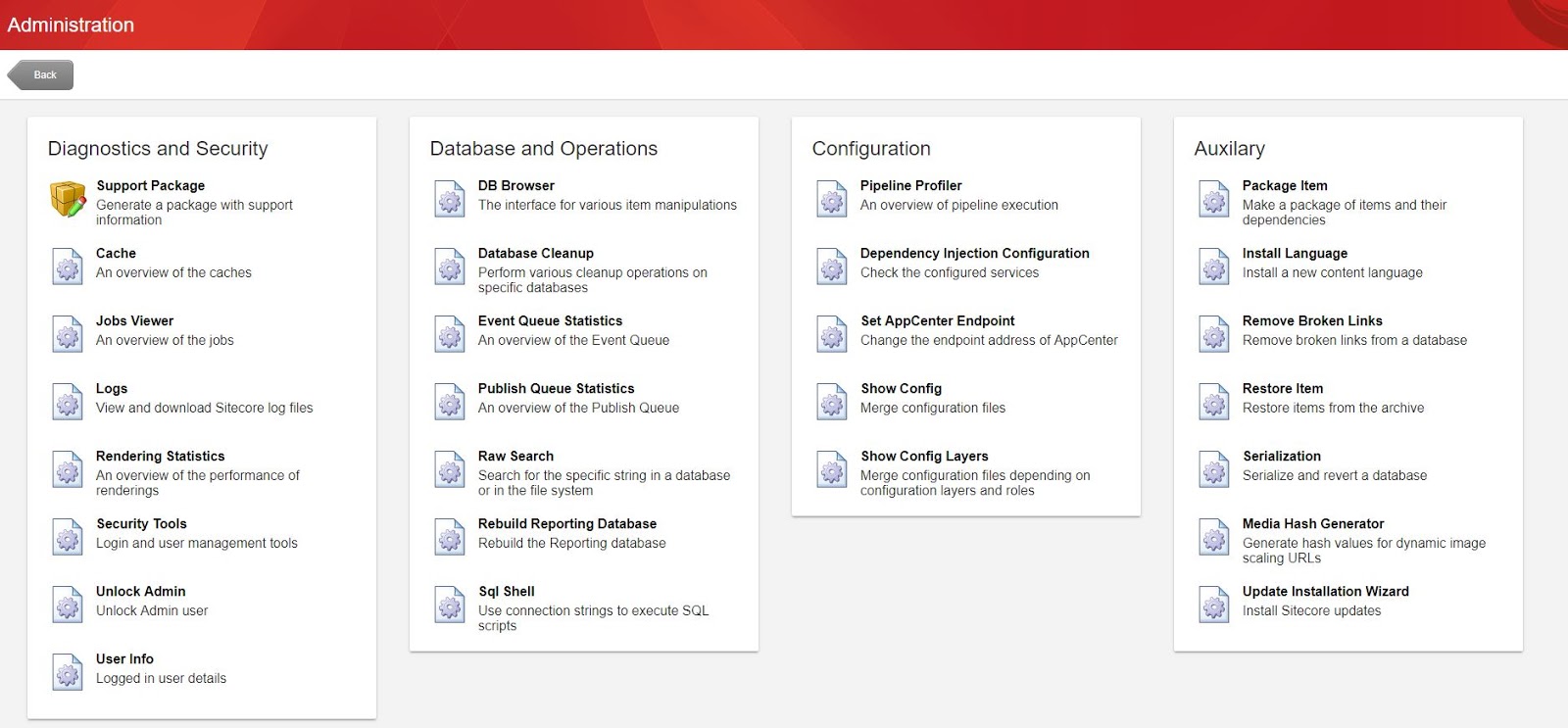
Recently I installed the (now) latest version of Sitecore, 9.0.2. The admin tools are still there, but wow.. they did get an update. The page went from looks-like-this-is-made-by-a-developer to something that fits in the admin interface of Sitecore.


As you can see there are also a few new additions. I won't go over the existing ones (they have been explained in the aformentioned blog by Kamruz or also here by Kris).

New additions

One that was added with Sitecore 9 already was the extended show config:: Show Config Layers. It will bring you to /sitecore/admin/ShowConfigLayers.aspx and allows you to see your configuration based on layers and roles. Would have been nice if environments were able as well, but haven't found that yet.


But the one I really wanted to mention, is a new and very cool one: the Support Package generator.  Yes, no need to install this anymore - you can generate your support packages from the admin section of the site now! Very nice, and always up to date. Available at /sitecore/admin/supportpackage.


Friday, May 11, 2018

Sitecore context language based on Geo IP location

Sitecore context language


Sitecore uses a context language (Sitecore.Context.Language) to fetch the correct version of an item to display. There is an out-of-the-box logic to determine the context language - it uses:
  1. The "sc_lang" query string parameter
  2. The language prefix in the url
  3. The language cookie for the site
  4. The default language in the site config.
  5. The DefaultLanguage setting in the Sitecore config
There are many other functional scenario's to determine the language of a (new) visitor and they can be developed in a custom processor that is placed in the httpRequestBegin pipeline. Create a class that overrides HttpRequestProcessor, implement an override for the Process method containing any logic you need and adapt the Sitecore Context properties (Language) as needed.

What if you want visitors to be directed to a language based on their location?

Geo IP detection

In Sitecore you can setup Geo IP location detection. This will add information to the Tracker about the location of your visitor. This information can be used for several purposes, and possibly also for language detection.

Geo IP to set the context language

We had to set the language of the new visitor to en-US when the visitor came from the USA.
As we had languages enabled in the urls, we only had to take care of the homepage - all other urls had a defined language already.

Seems so easy! Just create the language resolver as mentioned above and set the language based on the country in the tracker. Done.

Issue 1 : the tracker

If you place your language resolver where you normally would (just after the one from Sitecore) you'll notice that your tracker is not yet initialized. This is normal. If you want more information on the complete pipeline sequence in a request, you should read Martin Davies' blog. 
Solution: put your resolver elsewhere..  :
<startAnalytics>
   <processor patch:after="*[@type='Sitecore.Analytics.Pipelines.StartAnalytics.StartTracking, Sitecore.Analytics']" type="your-language-resolver, .." />
</startAnalytics>
As this is another pipeline, we'll also use another base class: my processor derives from RenderLayoutProcessor - the rest stays the same.

Issue 2: the Geo IP

On the first visit, you are most likely to find no geo ip data in the request pipeline. It's just too soon. The request has been made (async), but the results are not there yet. An article by Pavel Veller got us in the right direction. A new CreateVisitProcessor was made:
public class UpdateGeoIpData : CreateVisitProcessor
{
    public override void Process(CreateVisitArgs args)
    {
        var url = WebUtil.GetRawUrl();
        if (!url.Equals("/", StringComparison.OrdinalIgnoreCase))
        {
            return;
        }

        args.Interaction.UpdateGeoIpData(TimeSpan.FromMilliseconds(500));
    }
}

<pipelines>
    <createVisit>
        <processor type="Sitecore.Analytics.Pipelines.CreateVisits.UpdateGeoIpData, Sitecore.Analytics">
          <patch:delete/>
        </processor>
        <processor type="...UpdateGeoIpData, .." patch:after="processor[@type='Sitecore.Analytics.Pipelines.CreateVisits.XForwardedFor, Sitecore.Analytics']" />
    </createVisit>
</pipelines>

This will make sure that we wait a little longer, but only on the pages where needed.

Resolving

if (Tracker.Current.Interaction.HasGeoIpData)
{
    if (Tracker.Current.Interaction.GeoData.Country.Equals("US", StringComparison.OrdinalIgnoreCase))
    {
        return "en-US";
    }
}

Our final logic looked something as above. We test the country from the GeoData and handle accordingly.

For the moment we are running some performance tests, but so far it seems ok.